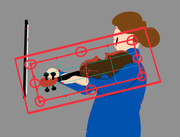
Can the Transform Points bounding box be aligned to the deformed object?

Have you come up with a good Moho trick? Need help solving an animation problem? Come on in.

Moderators: Víctor Paredes, Belgarath, slowtiger

Post Reply
User avatar
tifacloud7
Posts: 18
Joined: Tue May 20, 2025 7:01 pm

Can the Transform Points bounding box be aligned to the deformed object?

Post by tifacloud7 »

Hi everyone,
Is there a way to make the bounding box of the Transform Points tool align with the object being deformed, instead of always staying aligned to the screen?

When I’m working with mesh, I often need the bounding box to match the mesh orientation, not the screen orientation. I searched all morning but couldn’t find anything in the tutorials or documentation. It seems like this feature exists in Illustrator, but I’m not sure if Moho has something similar.

My current workaround is to keep the object and the mesh level horizontally, and only use bones with keyframes when I need rotation. But this becomes very difficult to manage during binding, so I’m hoping there might be a way to reset or re-align the bounding box directly.

If anyone knows a method or hidden option for this, I’d really appreciate it. Thanks!
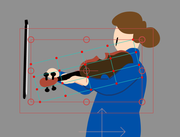
Image from this

Image to this

P.S.: Sorry, English is not my first language. I used ChatGPT to help with the translation, so please forgive me if anything sounds unclear or unnatural.
User avatar
Maestral
Posts: 610
Joined: Tue Jan 27, 2009 8:44 am
Location: Belgrade, Serbia

Re: Can the Transform Points bounding box be aligned to the deformed object?

Post by Maestral »

Hi, your message is quite understandable, just as your query.
I believe the option from Illustrator that you're referring to is Reset Bounding Box. There are some differences in behaviour, and thus, I think there are some reasons for the current state.

First of all, in Moho and as is, you can animate points and layer transformations separately. On the same keyframe, you can transform the layer and its points. I believe that could be a proper reason to keep it. In Illustrator, the Reset Bounding Box option confirms that the object's transformation is final and, for convenience, resetting the box alignment is preferred.

So, basically, two different intentions behind almost the same operation.

On a side note...
Do you know that Origin in point transformation can be animated? If you set the layer's position correctly, having the Origin for points adjusted could help you overcome the inconvenience. Layer's transformation would relate to bones where the inner, points' origin, would help you manipulate them. I think :roll:
User avatar
synthsin75
Posts: 10389
Joined: Mon Jan 14, 2008 2:20 pm
Location: Oklahoma
Contact:

Re: Can the Transform Points bounding box be aligned to the deformed object?

Post by synthsin75 »

If you draw the mesh straight and rotate the layer instead, the point transform bounding box will stay aligned with the points.
User avatar
Greenlaw
Posts: 10665
Joined: Mon Jun 19, 2006 9:45 am
Location: Los Angeles
Contact:

Re: Can the Transform Points bounding box be aligned to the deformed object?

Post by Greenlaw »

Normally, I would add a bone, align it with the artwork, and then rotate the bone for animation. The orientation of the bounding box isn't important, and it isn't even visible when animating in the bone layer.

But if you must animate the layer instead, you should align the artwork (points) horizontally at frame 0, and then rotate the layer at frame 1.

Alternatively, you can create an empty group, align the group layer to the artwork, and then drag the artwork layer into the aligned group layer. When you animate the arm, animate the aligned group layer instead of the art layer. (IMO, if you want to animate a layer, this is probably the best option. But I still think it makes more sense to animate a bone.)

Hope this helps.
User avatar
Greenlaw
Posts: 10665
Joined: Mon Jun 19, 2006 9:45 am
Location: Los Angeles
Contact:

Re: Can the Transform Points bounding box be aligned to the deformed object?

Post by Greenlaw »

Greenlaw wrote: Tue Dec 02, 2025 11:30 am Alternatively, you can create an empty group...
Ack! Sorry, this doesn't work the way I imagined. (I must have been thinking of After Effects.) I'm actually in Moho now, so let me get back to you on this.
User avatar
Greenlaw
Posts: 10665
Joined: Mon Jun 19, 2006 9:45 am
Location: Los Angeles
Contact:

Re: Can the Transform Points bounding box be aligned to the deformed object?

Post by Greenlaw »

Ok, I got it...give me a second to post a couple of GIFs.
User avatar
Greenlaw
Posts: 10665
Joined: Mon Jun 19, 2006 9:45 am
Location: Los Angeles
Contact:

Re: Can the Transform Points bounding box be aligned to the deformed object?

Post by Greenlaw »

Ok, here we go.

1. Bones - This would be the 'normal' way to deal with this in Moho...

Image

Just use Bind Layer to a bone and be done.

2. Group Layer - This is the third suggestion, but with additional info...

Image

What I'm doing...

1. Duplicate the layer and set the transparency to around 20%. This will be your positional reference.
2. Put the original Artwork layer inside a Group.
3. Move the Origin of the Artwork layer to the end of the art and rotate the layer to align horizontally.
4. Close the Group layer, then select it.
5. Move the Origin of the Group layer to the same position, and rotate it to align with the reference image.
6. Delete the reference.

Now, instead of animating the Artwork layer, just select and animate the Group layer.
User avatar
Greenlaw
Posts: 10665
Joined: Mon Jun 19, 2006 9:45 am
Location: Los Angeles
Contact:

Re: Can the Transform Points bounding box be aligned to the deformed object?

Post by Greenlaw »

One more coming up...this one will be easier. :)
User avatar
Greenlaw
Posts: 10665
Joined: Mon Jun 19, 2006 9:45 am
Location: Los Angeles
Contact:

Re: Can the Transform Points bounding box be aligned to the deformed object?

Post by Greenlaw »

Image

This technique is the same idea but applied to the original artwork layer, so it's closer to your request.

1. Duplicate the layer and set the opacity to 20%. This is your positional reference.
2. With the original artwork layer selected, use Transform Points to move the tool's pivot point and to align the artwork points horizontally.
3. Switch to the Transform Layer tool and move the Origin, then rotate the layer to align with the reference.

Your layer is now aligned with the artwork's angle at frame 0 (no need to adjust frame 1). You can delete the reference.

(Update: I just read Wes' last post, and this is basically what he described, but with the reference image added. I really should read the entire thread before posting.) :P
Post Reply